 |
JawnCon0x3 Badge: User ManualOverviewThis badge is a 4-digit calculator with a built-in touch-tone (DTMF) generator, a handful of hidden games, a serial menu for customizing it, and a wired link for connecting to other badges. Some of what it can do isn’t listed here. Poke around. Display: 4-digit, 7-segment
Keypad: 16 keys: digits Powering OnOn boot, each digit flickers through random static, then locks into place one at a time, left to right, spelling out the badge’s boot text. The animation takes about 3 seconds. The factory boot text is JAWN, but you can change it to anything you like (see The Serial Menu). If the display shows a fixed row of dashes at boot and the keys do nothing, the badge couldn’t find its keypad. That’s a hardware fault, not something the keypad can fix. Calculator
Example: TonesEvery key makes a sound, just like a real touch-tone phone:
The tones play in every mode, including inside the games. Secret GamesType a four-digit code and press
Higher or LowerThe badge picks a secret number from 0 to 9999.
DTMF Tone RecallA memory game played by ear.
Hex RecallA speed round: 5 rounds, 5 seconds each.
An unanswered round counts as wrong. Something ElseThere is at least one more game on this badge, and it doesn’t appear in the list above. The high-score screen (see below) hints at it. Finding the way in is part of the fun, and you may need a friend. The Serial MenuThe badge has a settings menu you reach from a computer. Connecting: use a USB-serial connection at 115200 baud, with a terminal that sends a newline when you press Enter. Opening it: type 1) Set Boot TextChoose any 4 characters from Not every letter looks great on seven segments. 2) View High ScoresYour best results in each game are saved and survive power-off:
One more line on the list shows LOCKED. Make of that what you will. 3) Badge-to-Badge LinkThis connects your badge to another one. See the next section. Linking Two Badges
Each badge keeps a running count of how many successful links it has made, stored permanently, and it is shown at the top of the link screen. Because a badge introduces itself by its boot text, the name you set in the menu is your badge’s identity. Something may change after your first successful link. Keep your eyes open. Wiring (for builders)
The link runs at 9600 baud on its own pins, separate from the USB serial connection, so you can keep your computer connected while linking. The connector style (header, 3.5mm jack, pogo pins) is up to you. All that matters is that TX and RX are crossed and the grounds are shared. Quick Reference
Happy hunting. Assembally
Build it Using the listed bill of materials above, go to the JawnCon soldering station; you will find the JawnCon Parts drawers th ere. You’re welcome to solder this as you seem fit, but I recommend the following order: Resistors, Diodes, ICs, the Crys tal, Capacitors, Buttons, and then the LED display. You can then plug it into the provided test cable at the soldering st ation to make sure it works! If not, there are multimeters, oscilloscopes, and other tools available to help troubleshoot . Once you see that it works, you can then install the power pack. Enjoy the badge! JawnCon 0x3 Printable Badge CoverWe’re excited to provide the STLs for the printable badge shell for the JawnCon 0x3 badge. We’re excited to see what you do with them! What you need
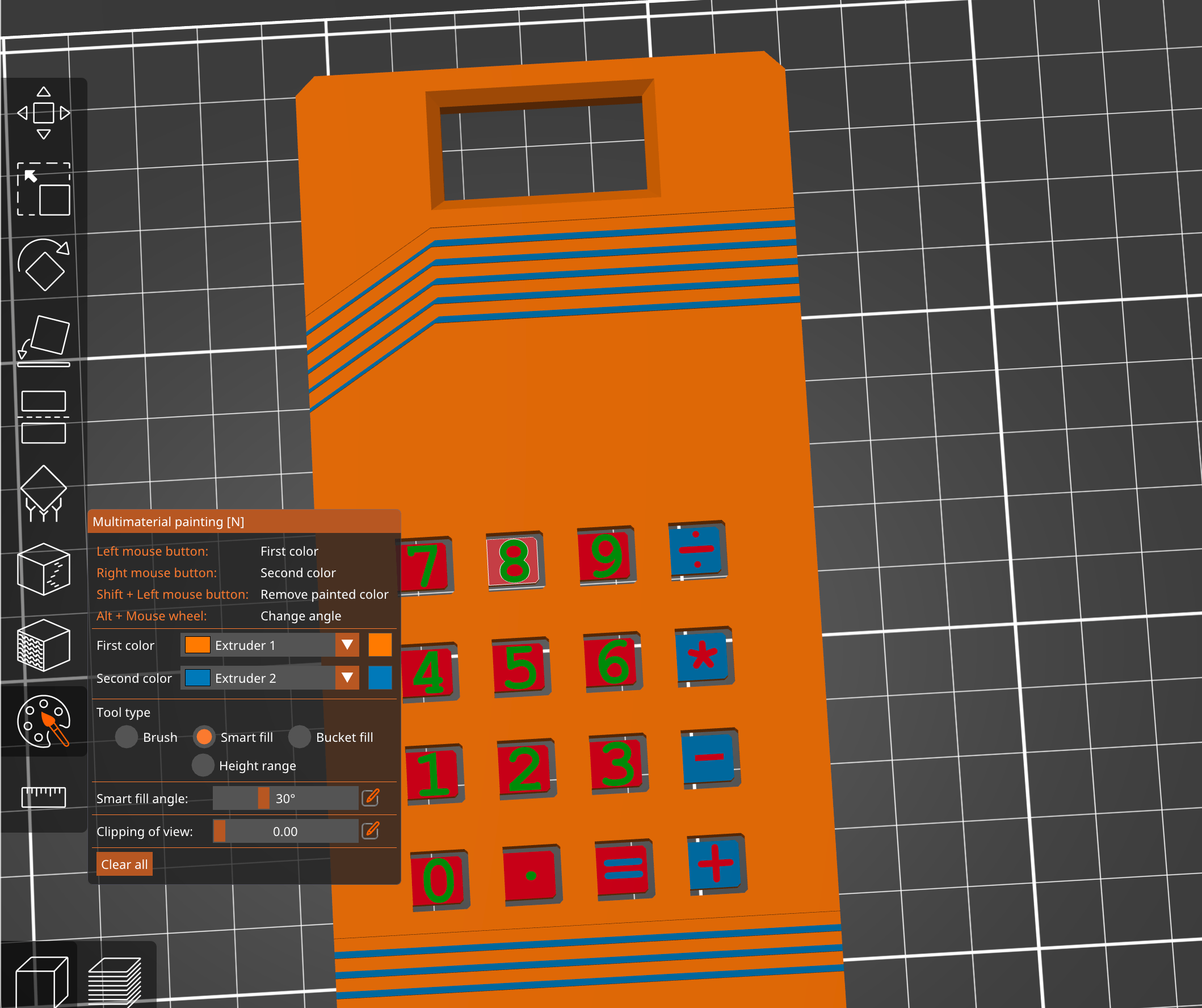
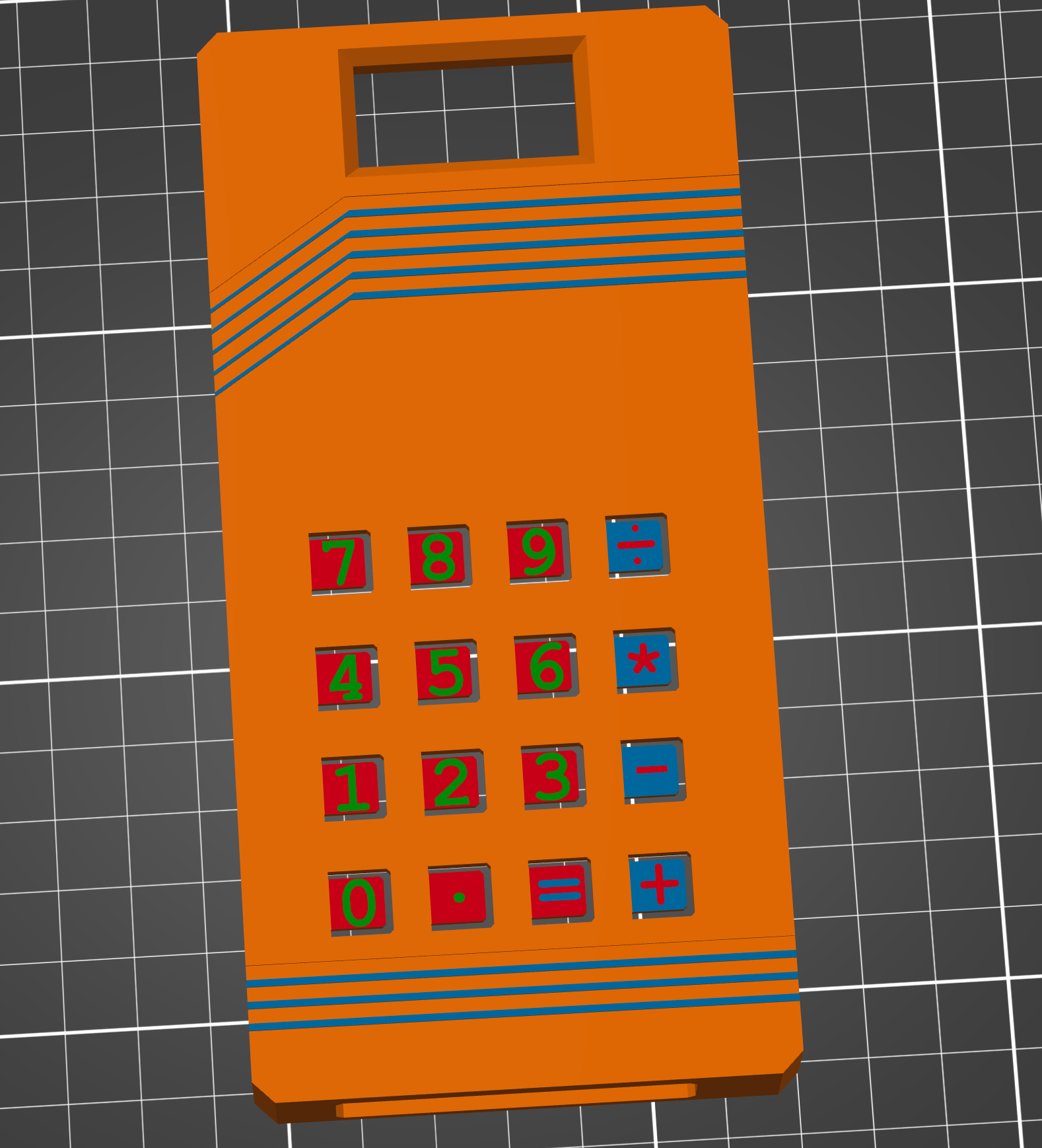
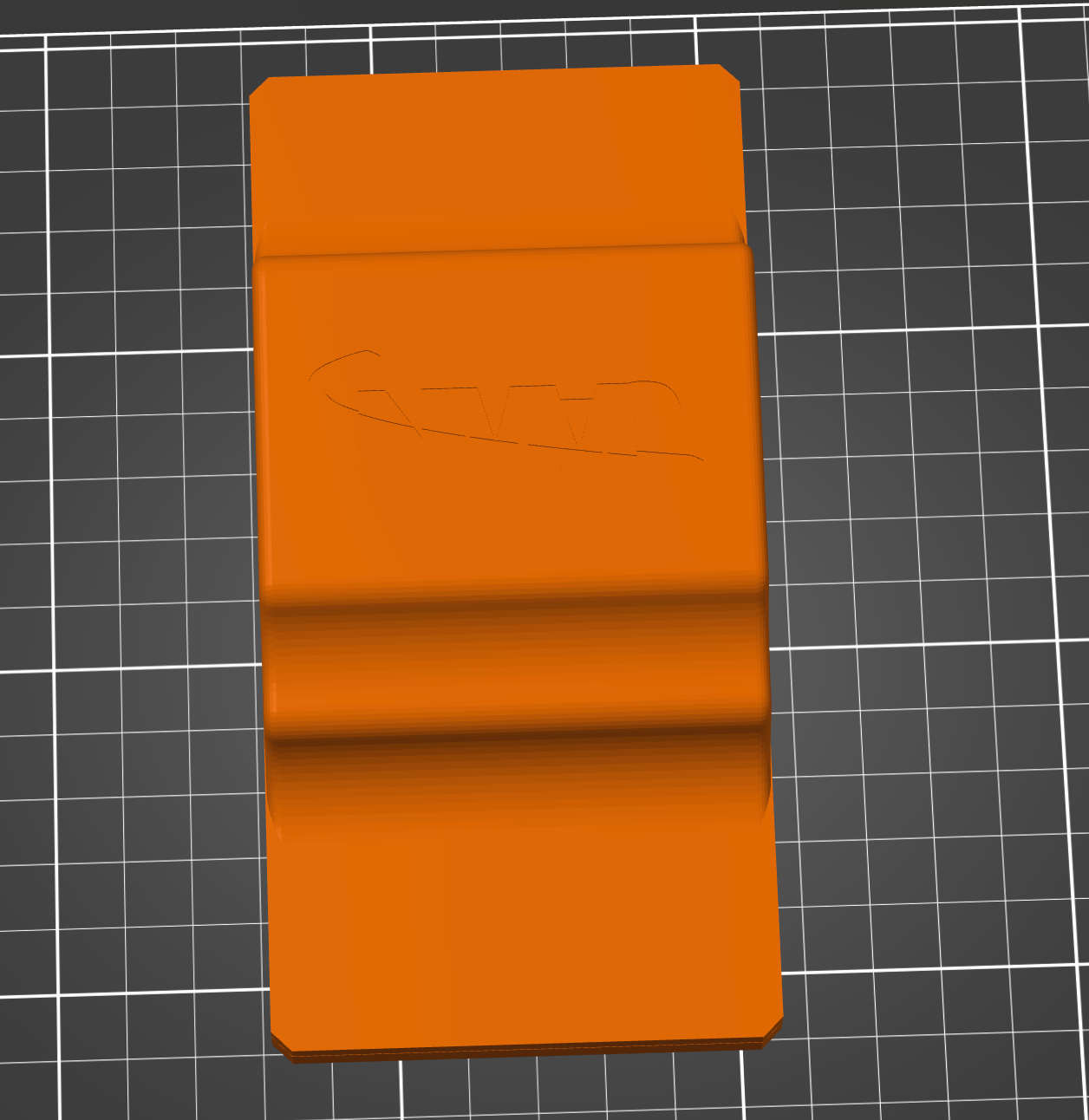
The filesThe front of the badge comes in two versions, depending on your printer capabilities.
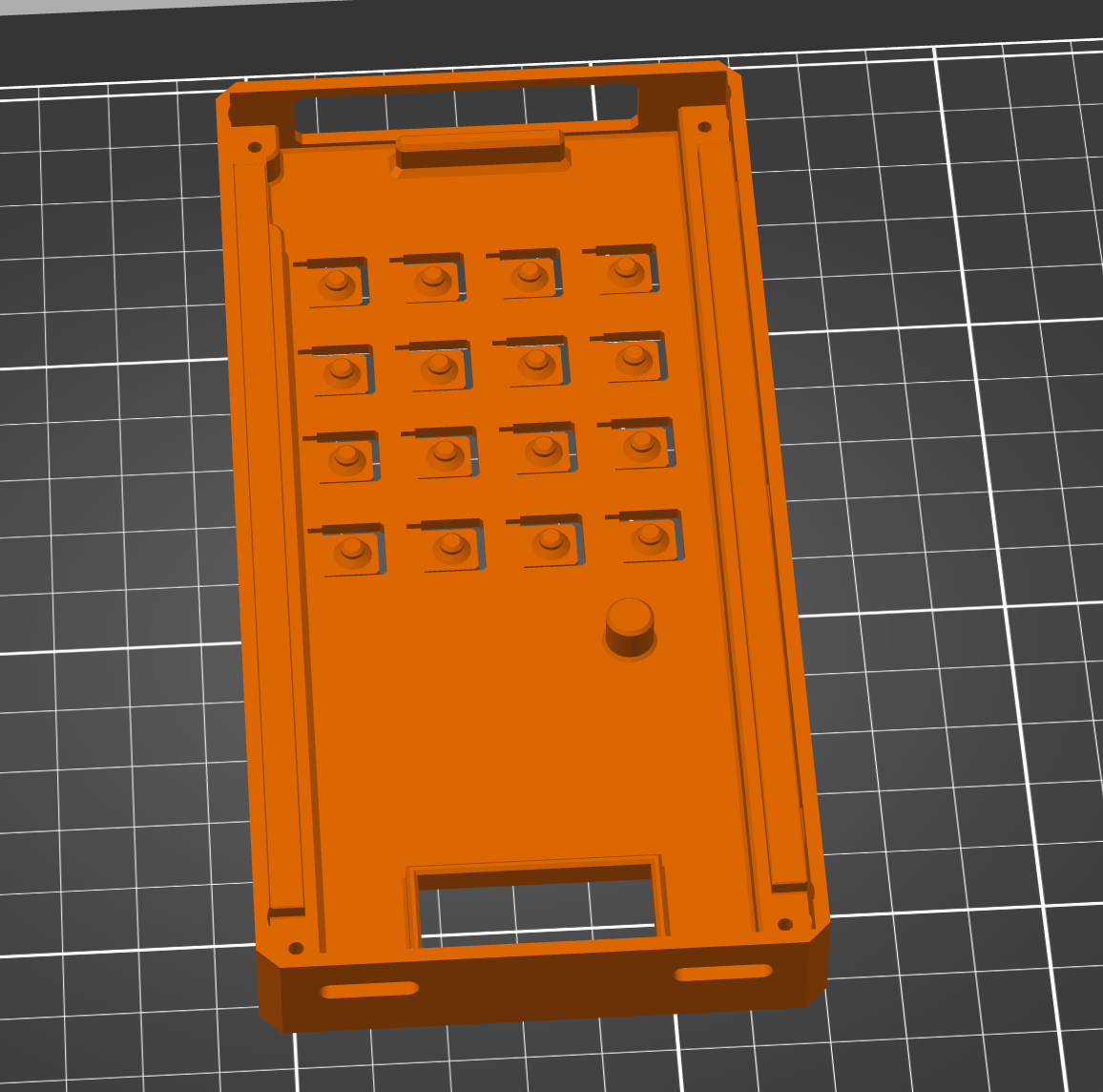
The back of the badge is the same for all printers.
Printing the front of the badgeThe front of the badge should be printed face down on the print bed. No supports are needed!
For a multi-color print, the features of the badge are included in the STL. We recommend using the “Smart Fill” feature found in most slicers to apply different colors.
The features are designed to print smoothly against the bed, but if you hover over them, you’ll be able to target them with smart fill!
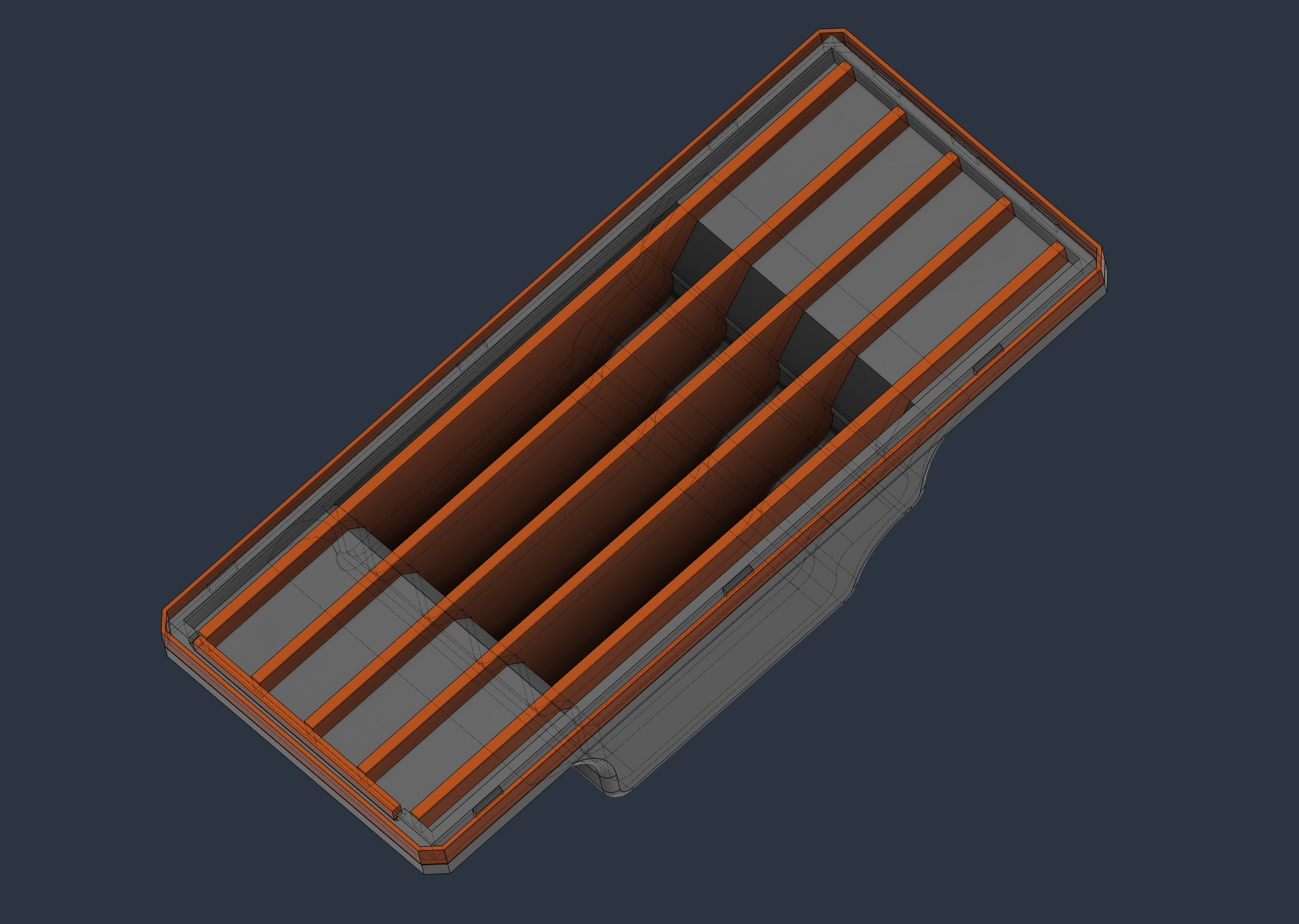
For increased clarity of the text in multicolor mode, be sure to turn on “Only one perimeter” and “Only one perimeter on first layer” in your slicer print profile settings. You can use the Search feature in your slicer to find these options if you’re not familiar with them, then orient it face down and print! Printing the back of the badgeThe pack of the badge has supports already integrated in the design. Slicer-generated supports shouldn’t be needed (but if you leave them on, it wouldn’t be the end of the world, you’ll just have to do some more clean-up). When you add the back of the badge to your slicer, it may warn that it contains several objects and offer to load as a single object with multiple parts. Answer yes! We’ll be taking advantage of that.
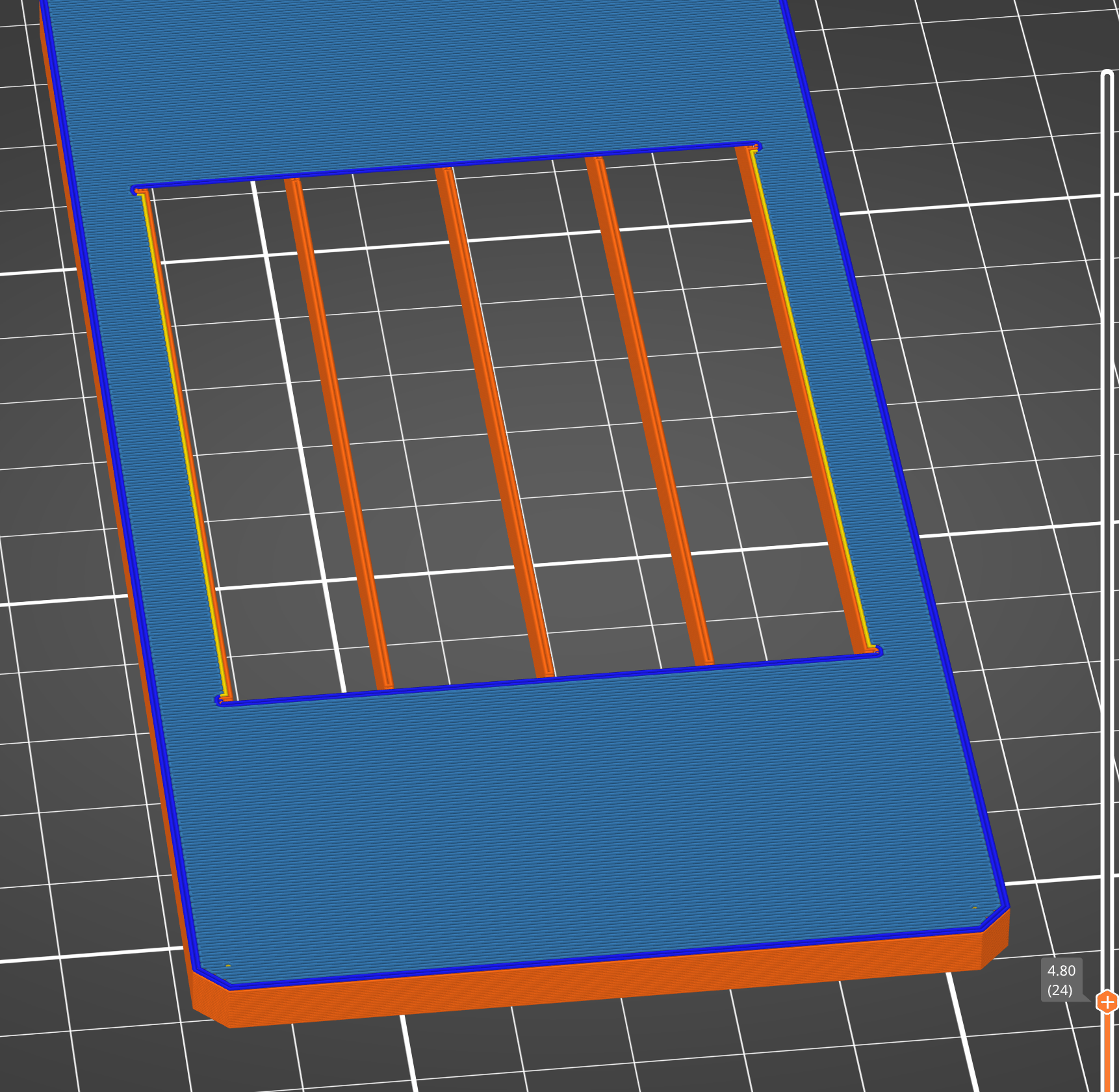
The back of the badge should be placed “cup side” down in the slicer:
If you have a multi-color printer, be sure to set all the supports to the same color as the shell. The final setting to make sure you enable is “Bridging Angle” in your print settings. By default this is set to “0”. Change it to “180”. You can find this option with the Search tool in your slicer settings. Make sure the bridge angle is set by slicing and examining the first layers on top of the supports. If you zoom in on the sliced badge, you want to make sure that the lines are going across the supports, not along the supports.
|
JawnCon™0x3 JawnCon™0x2 JawnCon™0x1 JawnCon™0x0 Code Of Conduct FAQ CFP Sponsor Tickets Schedule Map Schwag Mastodon Discord YouTube Thanks